Productivity, workload and call quality in one view.
Support leads juggle a help desk, a phone queue and a team spread across shifts. TaskQo puts productive and idle time, call quality and workload in one view, with the evidence attached.
7-day free trial · No card needed
What you get
See where queue time goes
Help desk work in focus is classified from the app, and AI vision reviews the rest, so working time and idle time are both visible.
Workload you can compare
Department reports show productive time, QA averages and off-task trends by team, so you can spot uneven workload.
Phone quality beside screen work
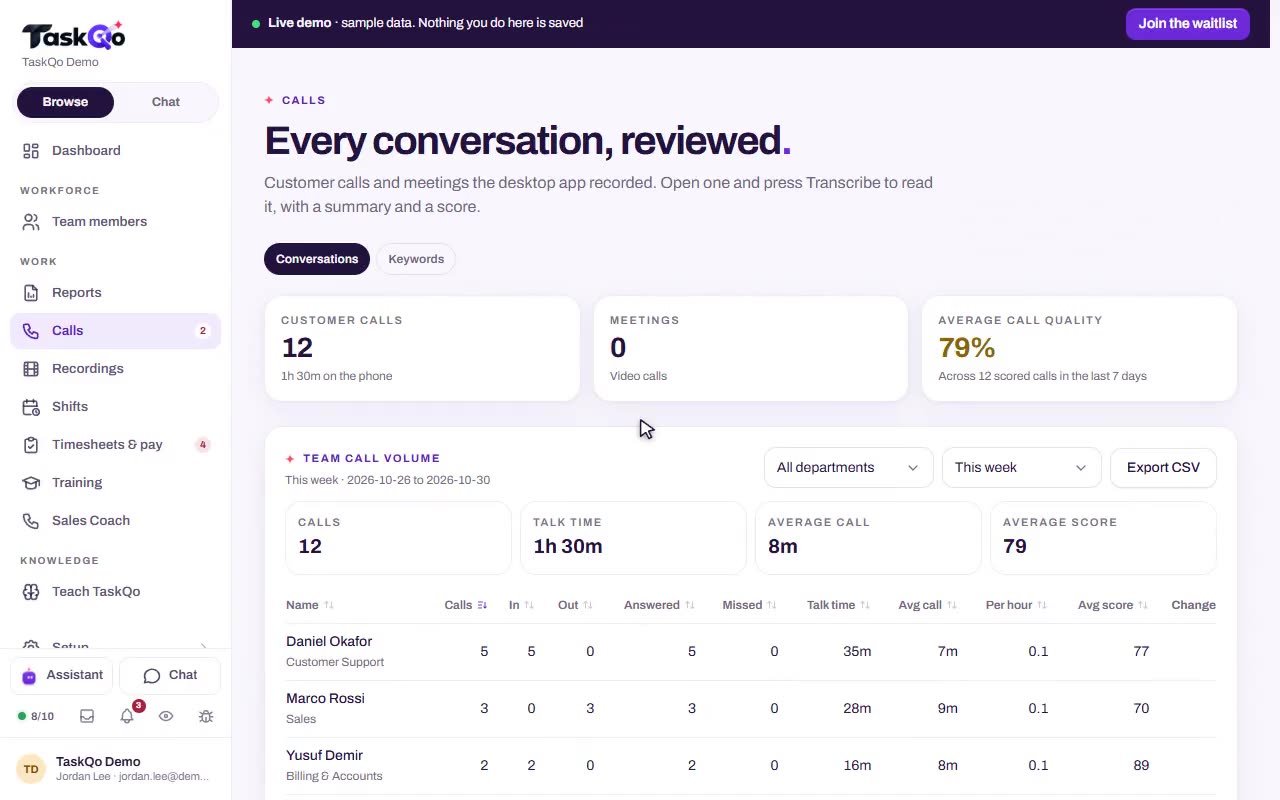
Any recorded support call can get a transcript, QA score and coaching notes in one click, next to the same person's screen time.
Questions answered in plain English
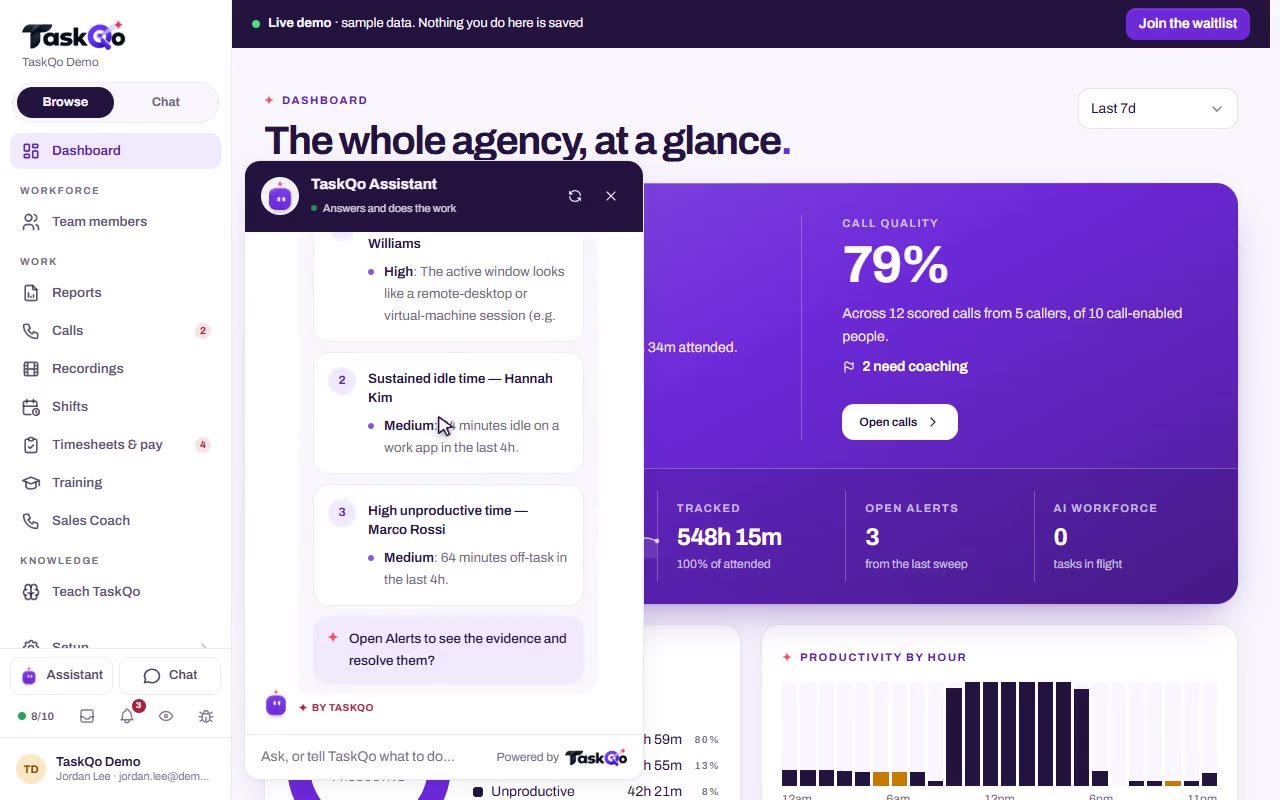
Ask the assistant which calls need coaching today or who lost the most time off-task, and get answers with the minutes cited.
What gets easier
Answering one question about the team means checking four different tools.
Productivity, calls, attendance and alerts sit in one record for each person, with the evidence attached.
A quiet queue and a disengaged agent look the same in activity numbers.
Each minute has a screenshot and a one-line summary, so you see what was actually on screen.
Phone support quality is hard to check alongside ticket work.
Recorded calls get a transcript, QA score and coaching notes in one click, on the same page as screen time.
Support screens show customer details you do not want stored.
Payment pages and other sensitive screens are never captured, and optional blurring hides card numbers and email addresses.
How it works
- 1
Set up your support shifts
Put the team on fixed or flexible shifts with leave and holidays. Monitoring runs only inside a shift and pauses on breaks.
- 2
Let TaskQo classify the day
Each tracked minute gets a classification, a one-line summary and its screenshot, and recorded calls are ready to review.
- 3
Lead from one page
Check each person's productive share, timeline, calls and recordings, act on alerts, and ask the assistant for a summary for your managers.
One place instead of four tabs
A support lead often checks a help desk report, a phone system, a time tracker and a QA spreadsheet to answer one question. TaskQo brings a person's productive, unproductive and idle time, their calls and their attendance into one record, with the evidence attached.
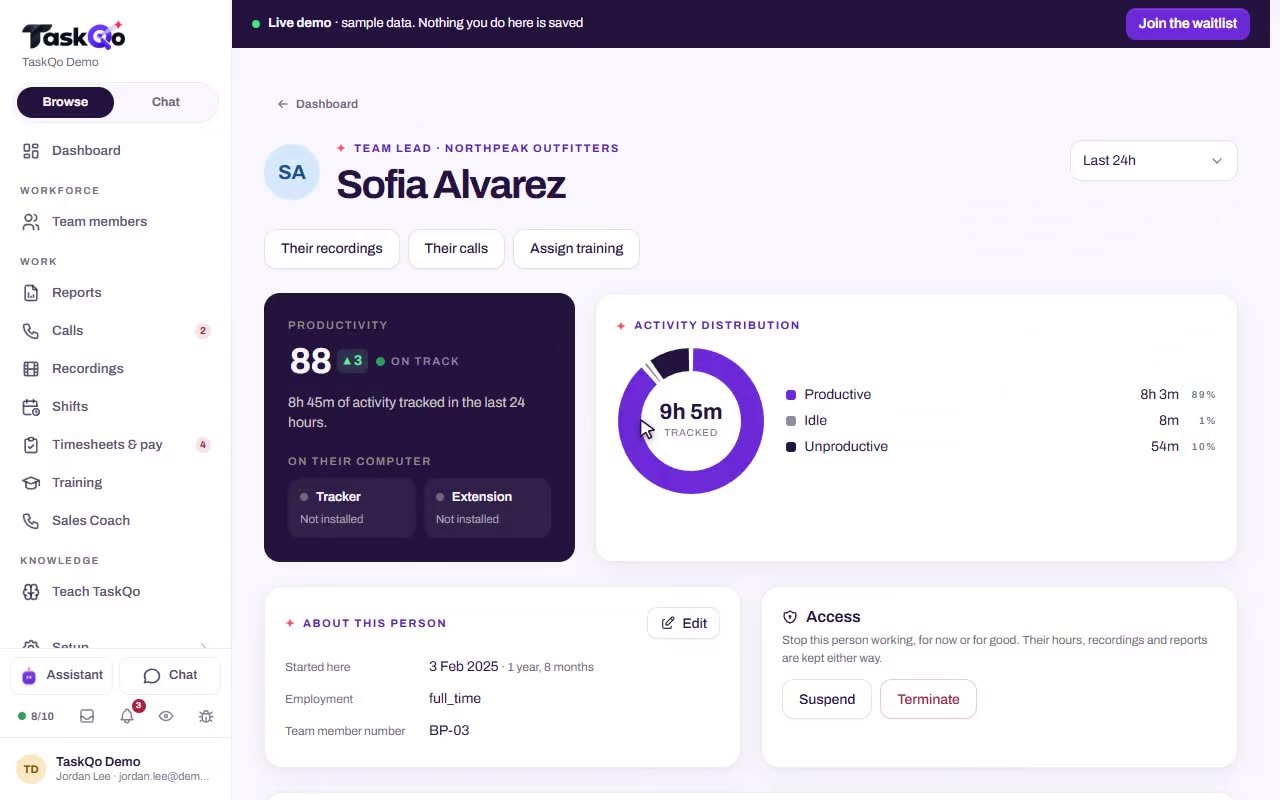
Open any team member's page to see their productive share for the last 24 hours, their live timeline, their calls and their recordings.
- Productive, unproductive and idle share per person
- Live timelines with activity levels
- Calls and recordings on the same page
- Assign training from the person's page
Idle time with context, not guesswork
Idle time in support is not always a problem. A quiet queue looks different from a long stretch away from the desk. TaskQo shows the screenshot and summary behind each minute, so you can tell the two apart before you say anything.
Alerts for long idle stretches and other exceptions arrive with the minutes cited, and a person decides what they mean. Good news shows up too, such as a team's call quality rising.
Customer details stay out of the record
Support screens often show personal details. Payment pages, password managers, online banking and patient portals start on the never captured list, and you can add your own. Optional blurring hides card numbers, email addresses and phone numbers inside screenshots before they are stored.
During a recorded call, the stretch when a payment screen is open is silenced before the audio is kept.
- Typed text off by default
- Social security numbers blurred when blurring is on
- Retention you set for every recording
Team members see the same timeline their manager sees, and any change a manager makes to a classification is logged against the shift.
Questions
How does TaskQo know a support agent is working?
TaskQo takes one screenshot per tracked minute. Clear-cut work is classified from the app in focus, AI vision reviews the rest, and each minute gets a one-line summary.
Can we review support calls too?
Yes. When call review is enabled, supported calls and meetings are recorded during shifts. One click on a recording gives a transcript, a QA score and coaching notes.
Will customer details end up in screenshots?
Screens on the never captured list are never captured. Optional blurring hides card numbers, social security numbers, email addresses and phone numbers before screenshots are stored.
Can the AI assistant write an update for our managers?
Yes. Ask in plain English and it answers from your team's TaskQo data, with the minutes cited. It can also write a summary for your managers on request.