Prove the work to every client you serve.
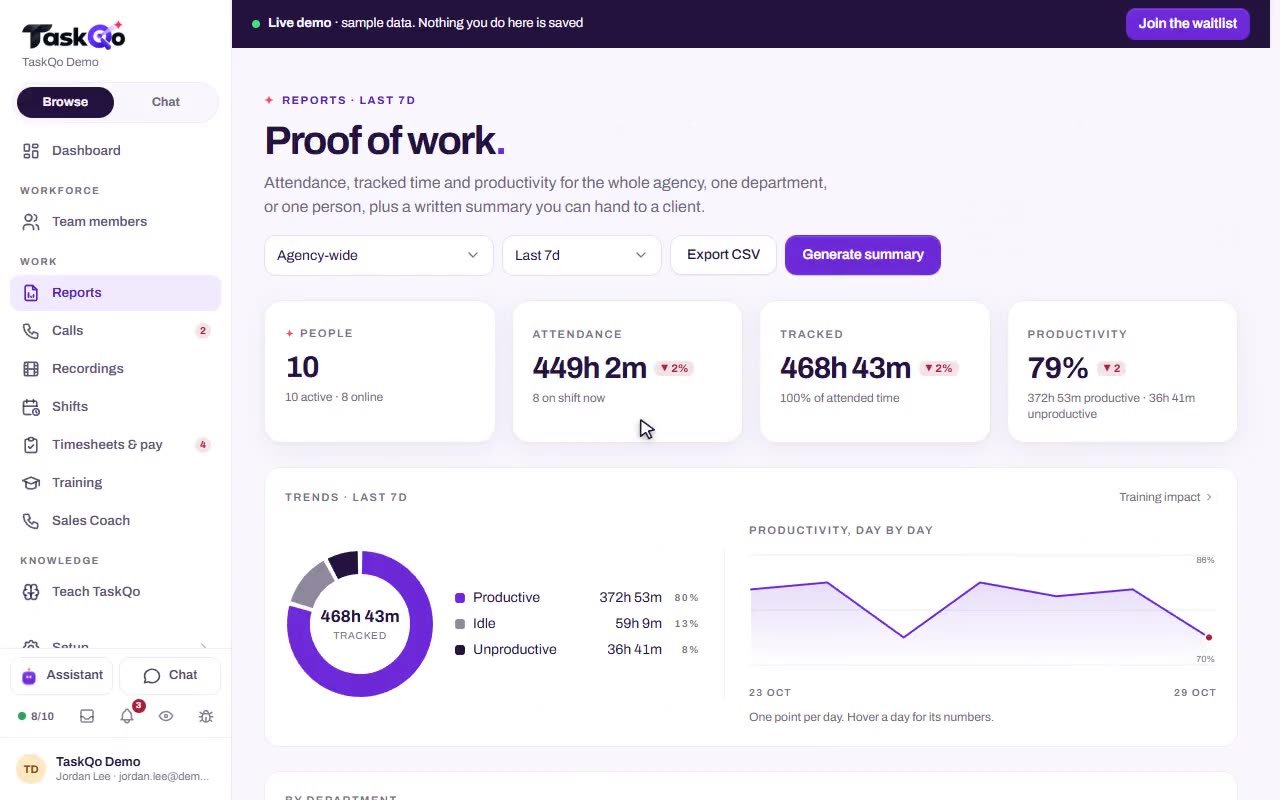
Your clients pay for work, not logins. TaskQo classifies each tracked minute, keeps the evidence and builds reports by client account, so you can show what got done and compare accounts side by side.
7-day free trial · No card needed
What you get
Evidence your clients can follow
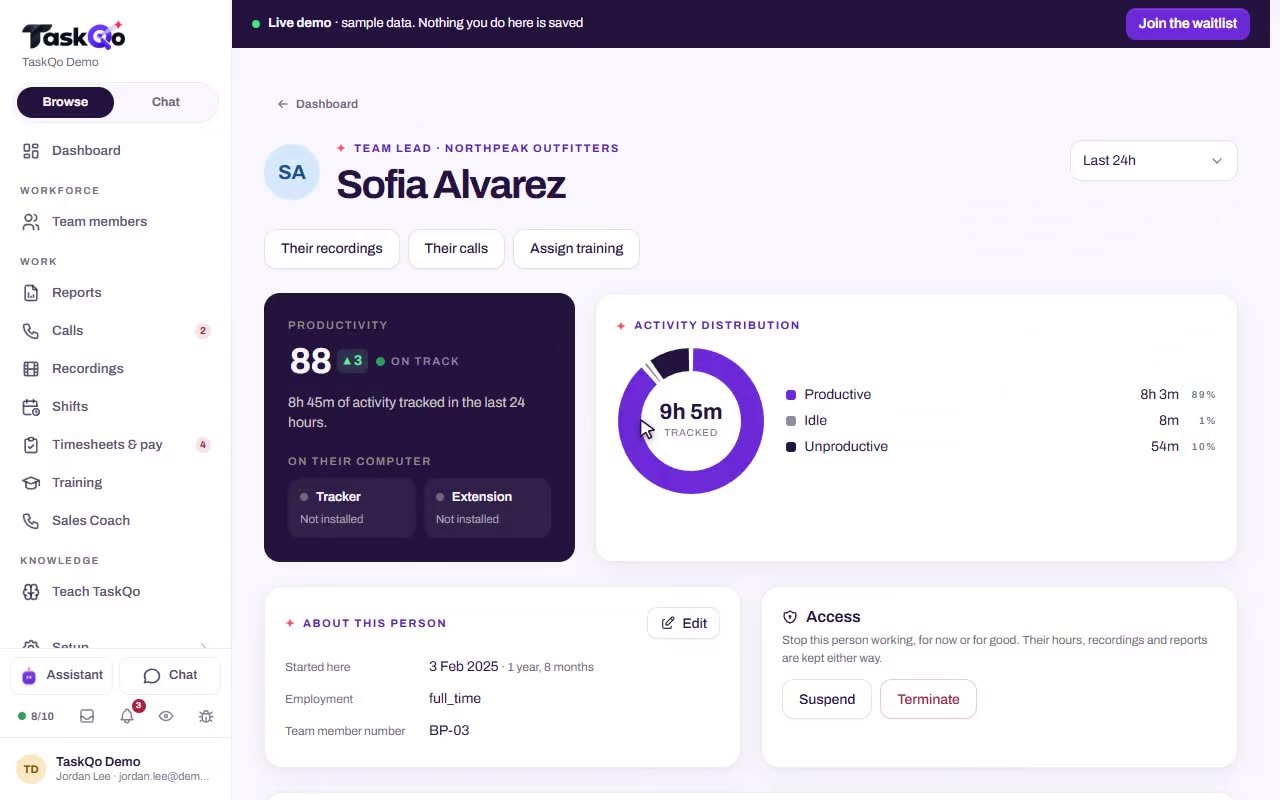
Each tracked minute is productive, unproductive or idle, with a one-line summary and the screenshot. You show the work instead of describing it.
Compare accounts side by side
See hours, scores and flags for every client account in one view, then compare agents, departments and accounts on the same measures.
Settle disputes with a timestamp
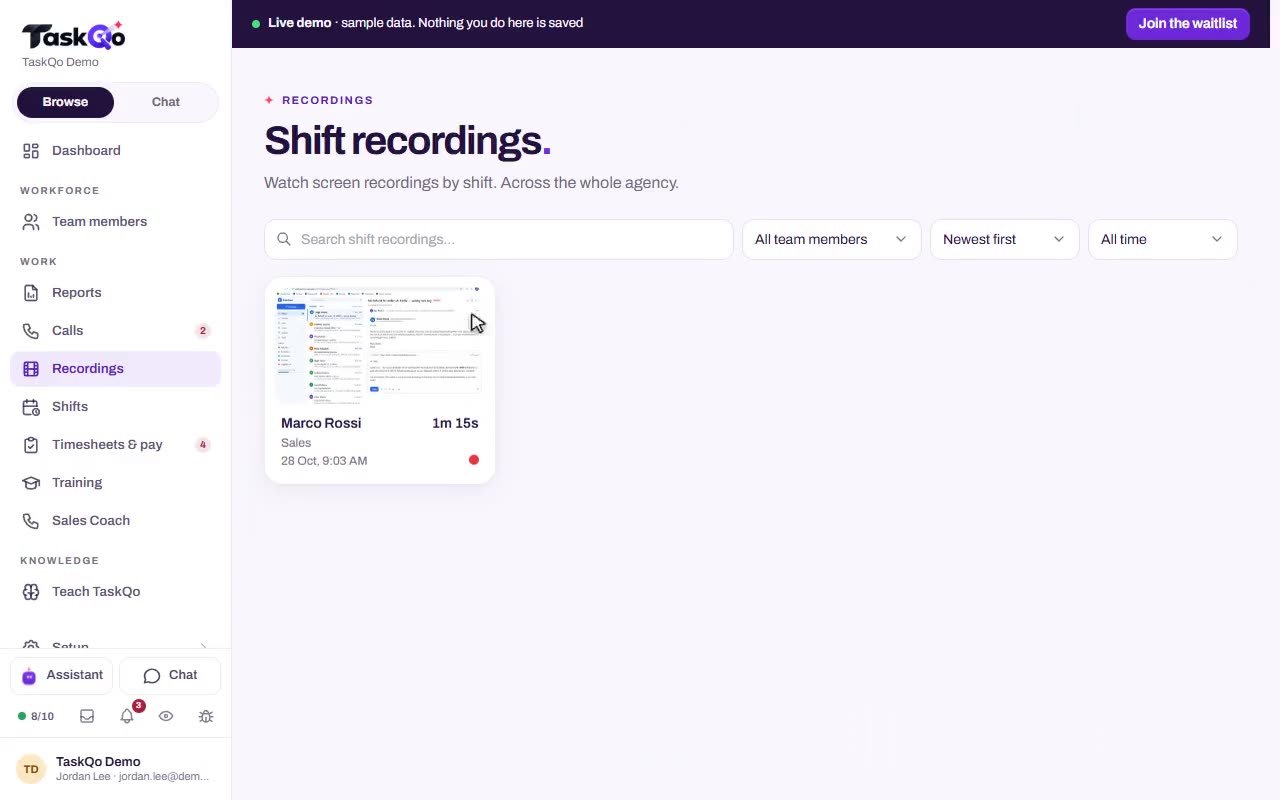
Replay a full shift as one video with chapters at flagged moments. Jump to the minute in question instead of arguing about it.
Capture rules per team
Set what the desktop app records for everyone, then change it for one department or one person when an account needs something different.
What gets easier
Clients ask for proof of work, and activity percentages do not explain anything.
Every tracked minute carries a classification, a one-line summary and the screenshot, so the evidence explains itself.
Comparing productivity across accounts means rebuilding numbers in spreadsheets.
Client account and department reports build themselves from tracked work, on the same measures for every account.
Hours disputes drag on because nobody can find the moment in question.
Replay the shift video, jump to the chapter at the flagged moment, and settle it with a timestamp.
On a large floor it is hard to spot who has stopped working.
Alerts flag long idle stretches, mouse jigglers and remote-desktop sessions with the minutes attached. A person decides what they mean.
How it works
- 1
Set shifts for each team
Put fixed or flexible shifts on a weekly calendar with leave and holidays. Nothing is captured until a team member gives consent in the desktop app.
- 2
Let TaskQo read the work
One screenshot is captured each tracked minute. Clear-cut work is classified from the app in focus, and AI vision reviews the rest.
- 3
Report by client account
Open the client account report, drill from any result into the activity behind it, and share each person's own report with them.
Show clients what they paid for
A screenshot folder is not proof anyone can use. One 8-hour shift produces 480 screenshots, and nobody opens them all for a whole account. TaskQo classifies each tracked minute and keeps the screenshot behind it, so the record explains itself.
When a client asks how their hours were spent, you answer with the account report and open the exact minutes behind any number.
- Hours, scores and flags for each client account
- Drill from any result into the activity behind it
- A one-line summary of what was on screen each minute
- Manager corrections logged against the shift
Compare agents and accounts on the same terms
Running several accounts often means several ways of measuring work, rebuilt by hand in spreadsheets. TaskQo applies one classification to every tracked minute, so a productive hour on one account means the same as on another. Department reports add productive time, QA averages and off-task trends by team.
When call review is enabled, any recorded call can get a QA score for communication, issue resolution and professionalism in one click, so call quality sits next to productivity.
- Person, department and client account reports
- QA averages next to productive time
- Off-task trends by team
Hours and payroll prep for a large floor
TaskQo calculates attendance, overtime, breaks and holiday pay from tracked work. Set hourly rates or salaries with overtime and holiday rates, then approve each week. Approved weeks lock, and you export a payroll-ready CSV or a timesheet PDF for your own payroll process.
Managers also see whether the desktop app and browser extension are installed for each team member, so a missing setup is caught before it leaves a gap in a client report.
- Each week approved by a manager, then locked
- Manual time marked, and every change needs a reason
- Payroll-ready CSV and timesheet PDF
Team members see the same timeline their manager sees, and they can press "This is wrong" on any AI result about them and get an answer with a reason.
Questions
Can we report on each client account separately?
Yes. Hours, scores and flags for every account sit together in the client account report. You can drill from any result into the activity behind it.
Do we pay per agent?
No. There is no seat fee and no monthly plan. You pay only for what you use, and every agency gets 5 GB of storage free.
Can different account teams have different capture settings?
Yes. Set what the desktop app records for everyone, then change it for one department or one person. Typed text stays off by default.
What if a client questions an agent's hours?
Open the shift. Every tracked minute has its classification and screenshot, and if you record full shifts, the video has chapters at flagged moments, so you can point to the exact time.