Know what every tracked minute was spent on.
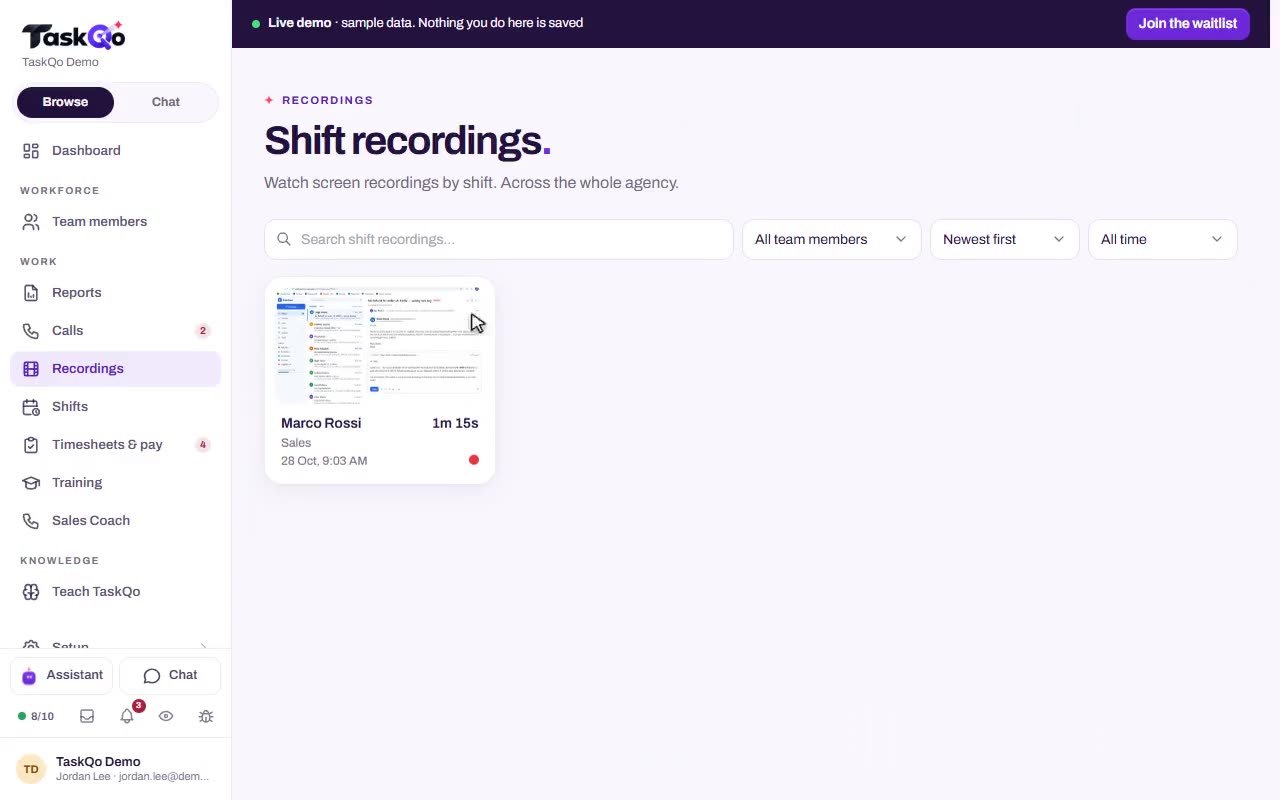
One screenshot each tracked minute, a classification for every minute, and the reason behind it. You review the exceptions instead of a folder full of screenshots.
7-day free trial · No card needed
What you get
Answers, not activity percentages
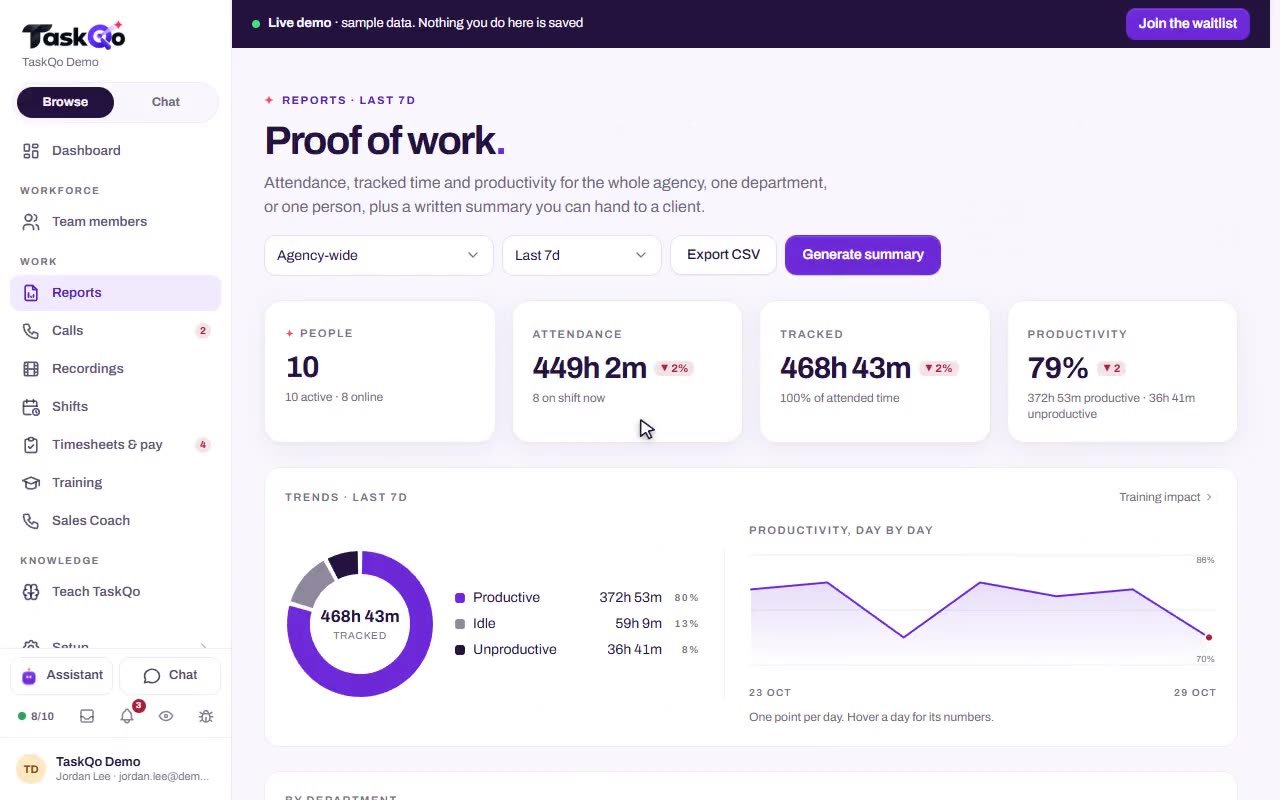
An activity level alone does not say what happened. Each minute gets a verdict of productive, unproductive or idle, with a short summary of what was on screen.
Evidence on every minute
The screenshot, the activity level and the app in focus sit beside each classification, so you can check any result yourself.
One-click corrections
If a minute was read wrong, confirm or change it in one click. The change is logged against the shift.
The same view for the team
Team members see their own timeline and the reason behind each classification. It is the same timeline their manager sees.
How it works
- 1
A shift starts
Capture runs only while a shift is open. One screenshot is taken each tracked minute, and capture pauses on breaks.
- 2
Each minute is classified
Clear-cut work is classified from the app in focus. AI vision reviews the rest and writes a one-line summary of what was on screen.
- 3
You review the exceptions
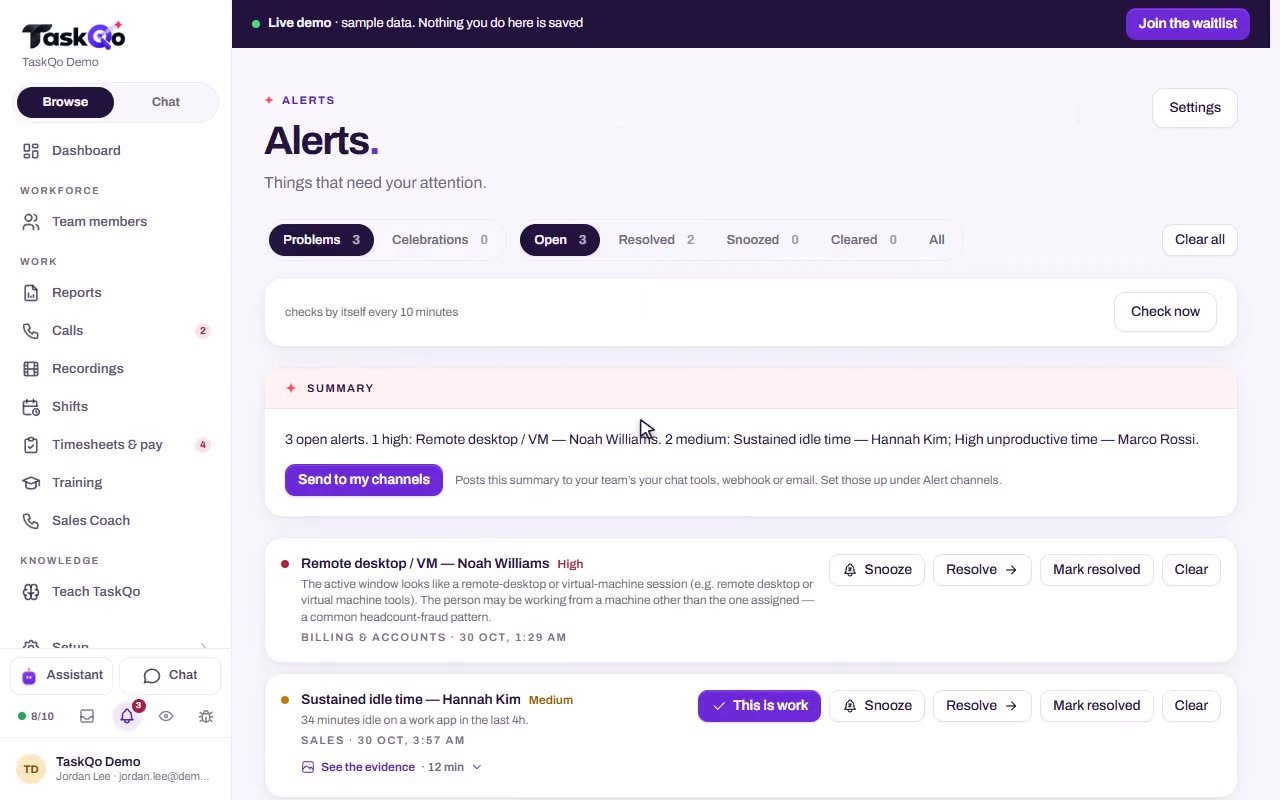
Unusual minutes come to the top. Open one, look at the screenshot, then keep the verdict or overturn it.
Why a screenshot folder is not enough
A normal 8-hour shift produces 480 screenshots for one person. No manager has time to open them all, so most go unread and the real questions stay open. Activity percentages and hours worked do not fill the gap either.
TaskQo does the reading for you. Every tracked minute is marked productive, unproductive or idle, and the screenshot stays attached for the moments you want a closer look.
- 480 minutes in an 8-hour shift, each one classified
- Unusual minutes brought to the top for review
- The screenshot attached whenever you want to check
How a minute gets its classification
When the app in focus makes the work obvious, the minute is classified from that alone. When it does not, AI vision looks at the screenshot. Either way you get a one-line summary, such as a help desk queue in focus with two replies drafted and the queue down four.
- The app in focus for clear-cut work
- AI vision for everything else
- A one-line summary with every minute
- Live timelines with classifications and activity levels
Results people can question
Every AI assessment shows its work. A team member who disagrees can press "This is wrong" on any AI result about them. Their manager must answer with a reason, and the original result stays on record beside the answer.
AI results are never the only basis for a decision about a person, and AI never changes pay. Pay comes from hours worked and keyboard and mouse activity.
Monitoring runs only during scheduled shifts, typed text is off by default, and every change to a classification is logged.
Questions
Does TaskQo read keystrokes to classify work?
No. Classifications come from one screenshot per tracked minute plus activity levels. Typed text capture stays off unless an admin turns it on.
What happens if the AI gets a minute wrong?
A manager can confirm or change any classification in one click, and the change is logged. The team member can also press "This is wrong" and get an answer with a reason.
Can team members see their own classifications?
Yes. Every person has a self-view with the same timeline their manager sees, including the reason behind each classification.
What if a sensitive screen is open?
Screens on the never captured list, such as online banking and password managers, are never captured. The minute still counts as work.