
Key takeaways
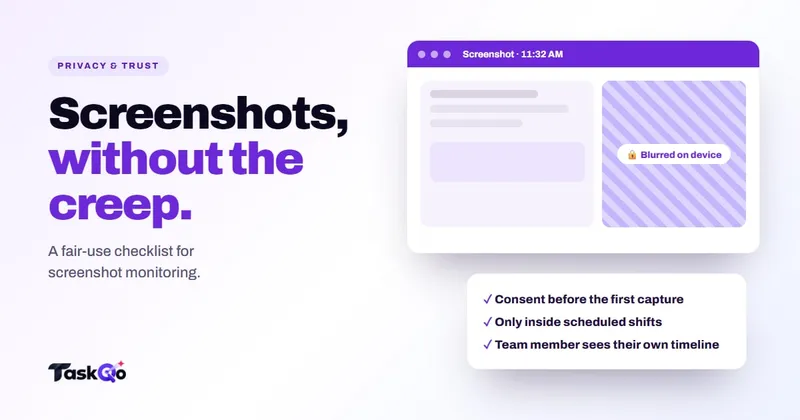
- Get consent before the first capture, and keep a record of who agreed to which policy.
- Capture only inside scheduled shifts, and keep sensitive screens out of readable storage.
- Set a retention period and delete on schedule. Data you no longer hold cannot leak.
- Let people see their own screenshots, and limit who else can open them.
Why screenshot monitoring privacy matters
A screenshot can capture far more than work. A personal message that pops up, a bank tab left open on a break, a medical portal, a family photo on the desktop. That is why screenshot monitoring privacy deserves more thought than any other setting in a monitoring tool.
Get it wrong and the damage goes beyond one awkward image. Agents who feel watched in secret stop trusting the numbers built on those screenshots, and good people leave. Get it right and screenshots become something useful to both sides: evidence a manager can check, and evidence an agent can point to when a result looks unfair.
The decisions below apply whatever tool you use. Make them before rollout, write them into a policy, and share that policy with the team.
Start with consent and a clear policy
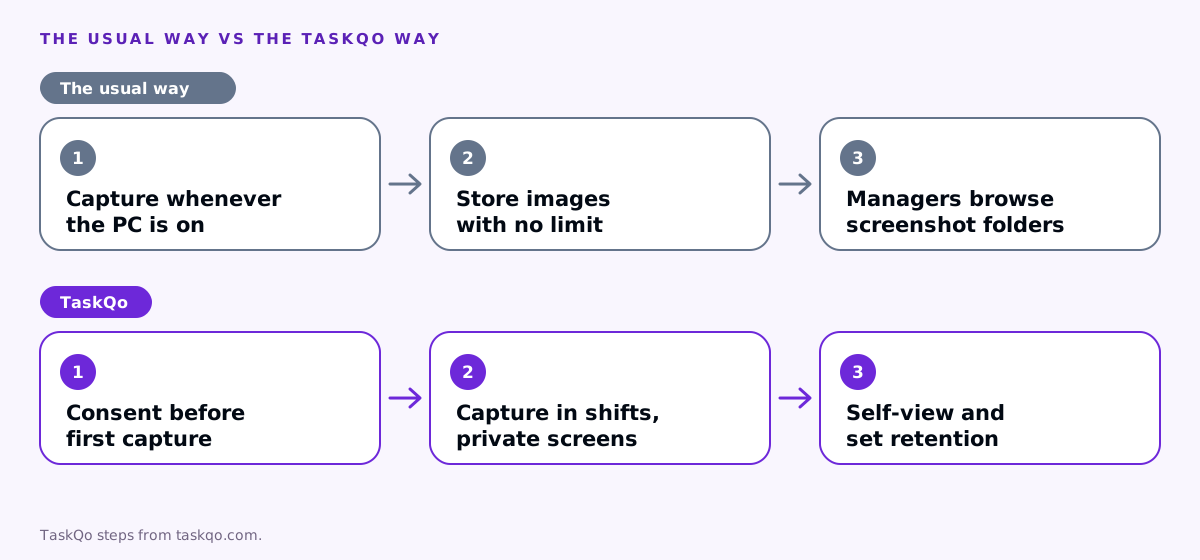
People should know they are being monitored before the first screenshot is taken, not after. A short written policy should answer the questions every agent will ask:
- When are screenshots taken, and how often?
- What happens outside working hours and on breaks?
- Who can see the images, and for what purposes?
- How long are they kept?
- How can I see my own data or question a result?
Ask each person to acknowledge the policy, and keep a record of who agreed to which version. When the policy changes, ask again. Requirements for notice and consent differ by country and state, so check local law or ask counsel before you start.
Capture only inside working time
The simplest privacy rule is also the most effective: no screenshots outside scheduled work. Tie capture to the shift schedule, not to whether the computer is switched on.
This matters most for remote teams. A laptop used for work in the day is often a family computer in the evening. If the tracker keeps running after a shift ends, it will eventually capture something that has nothing to do with work, and the program loses credibility.
Think about breaks too. Decide whether capture pauses during breaks and lunch, and say so in the policy. Make it obvious to the person at the keyboard when capture is on, for example with an indicator that shows each time a screenshot is taken. Open signals like this remove the suspicion that monitoring might be happening in secret.
Blur and redact sensitive screens
Even inside a shift, some screens should never be stored in readable form. Banking apps, health portals, password managers and customer payment details are the usual examples.
Look for three protections:
- Private screens kept out of storage. Sensitive screens should never be stored as a readable image; a short general description is enough.
- Redaction of typed text. If any typed text is captured, passwords, card numbers and email addresses should be removed automatically. Better still, leave typed-text capture off unless you have a specific need.
- Per-person settings. A payroll specialist and a chat agent see very different data. Capture settings should be adjustable by department or person.
Collect the minimum you need to answer your actual questions. If classifications can come from screenshots and activity levels, there is no reason to record keystrokes as well.
Decide who can see what, and for how long
Access is where many programs drift. Screenshots start with one operations manager and end up visible to anyone with a dashboard login. Set access rules on purpose:
- The person themselves should see their own screenshots and the classifications built on them.
- Their direct manager needs access to review exceptions and correct mistakes.
- Everyone else should need a clear reason, such as a dispute or a security review.
Set a retention period and delete on schedule. Screenshots are useful for reviewing recent work and settling disputes, but their value fades quickly. Keeping them forever only adds risk.
Finally, store images encrypted, and log changes. If a manager changes a classification, the change and the reason should be on record for the agent to see.
Explain the program to your team
A written policy is necessary, but it is not enough on its own. Most people will not read a policy closely until something goes wrong. A short team meeting before rollout does more for trust than any document.
Cover the practical points in plain language:
- Why you are doing it. For example, verifying remote work for a client, settling attendance disputes or finding coaching moments.
- What it will not be used for. Say plainly that it is not a hidden camera and that no single screenshot will be treated as proof of anything.
- What they can see. Show the self-view or equivalent, so people know they will see what their manager sees.
- How to raise a concern. Name a person or a channel for questions and corrections.
Invite questions and answer them honestly, including the uncomfortable ones. If you cannot answer something yet, say so and follow up. Revisit the conversation a few weeks after rollout, when people have seen how the program works in practice and may have new questions about what is captured or who has access.
How TaskQo protects screenshot privacy
TaskQo is designed for transparent monitoring, not secret monitoring. Consent is recorded before the first capture, and monitoring runs only inside fixed or flexible scheduled shifts. Capture runs only while a shift is open, and pauses on breaks, and the desktop app stops capturing when the shift ends.
One screenshot is captured each tracked minute. Admins can turn on a setting that makes the tracker bubble flash a small camera each time, so people always know. Banking and health apps can be kept only as a general description. Typed-text capture is off by default, and when an admin turns it on, card numbers, email addresses and labelled passwords are removed. Capture settings can be set for everyone, then changed for one department or one person.
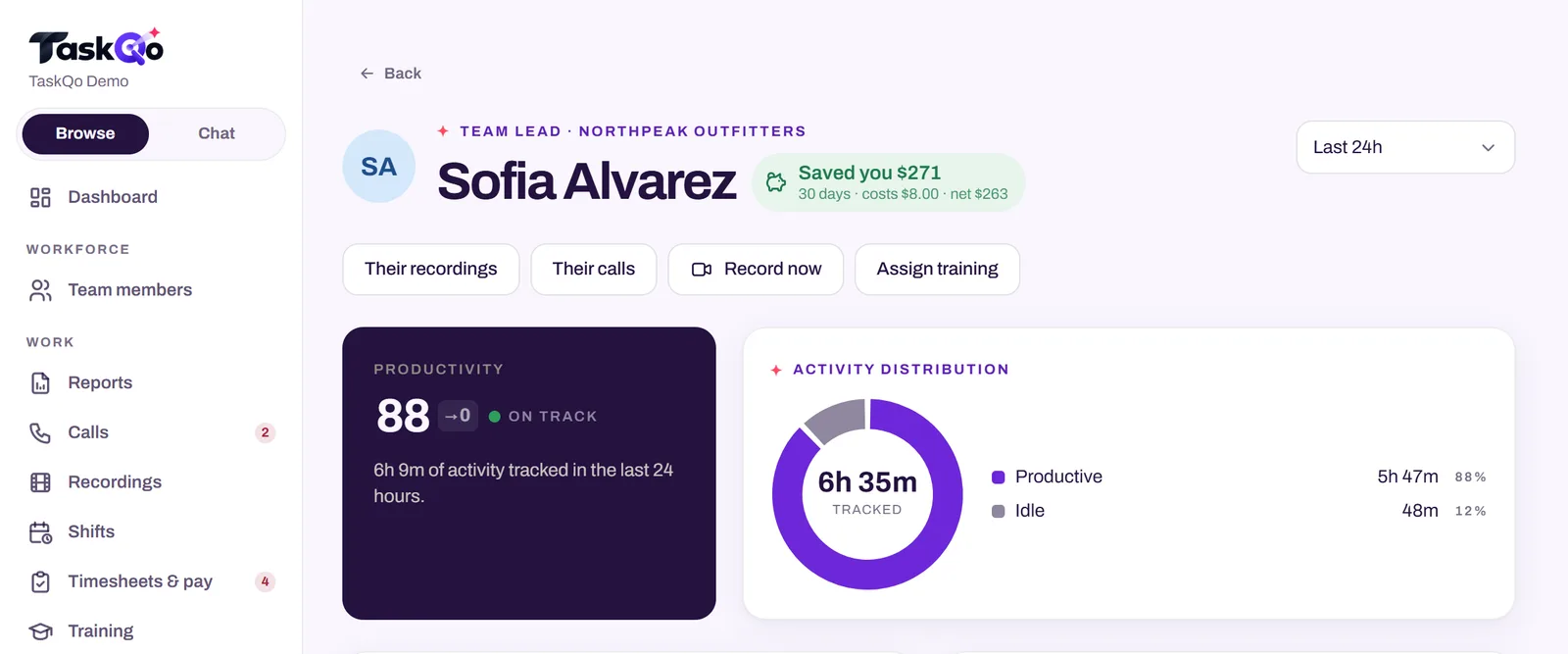
Screenshots, recordings and transcripts are kept in TaskQo storage, encrypted with a key for your organization and deleted on the retention schedule you set. Only people in your organization with access can open them. Every team member has a self-view with the same timeline their manager sees, and every change to a classification is logged.
See these controls in the live demo with sample data, or join the waitlist for early access.
Use screenshots as evidence, not verdicts
A screenshot shows one moment. It does not show what the agent was thinking, who they were talking to or why a window was open. Treat it as one piece of evidence that a person reviews in context.
If a screenshot raises a question, ask the agent before drawing a conclusion. A news site might be research for a ticket, and a personal app might have been open for a minute during a break. Give people a way to explain and to correct a result.
Programs built this way tend to need fewer screenshots reviewed, not more, because managers look at exceptions and trust the rest. For more on that balance, read our guide on how to monitor a remote team without micromanaging.
Comparing tools: TaskQo vs Insightful: two ways to understand remote work · TaskQo vs Controlio: video monitoring or explained minutes?.
FAQ
Is screenshot monitoring legal?
It depends on where you and your team are. Rules on notice, consent and data retention differ by country and state, so check local law or ask counsel before you start.
Should team members be told when a screenshot is taken?
Being open is the better practice. A visible indicator each time a screenshot is taken removes doubt about when monitoring happens and builds trust in the results.
How long should monitoring screenshots be kept?
Keep them only as long as you need them to review recent work and settle disputes, then delete them on a fixed schedule. Check any legal or contract requirements that apply to you.
Can screenshot monitoring capture personal information?
It can, which is why capture should run only during scheduled shifts and sensitive apps such as banking and health portals should be kept only as a general description, not a readable image.
About this guide: written by the TaskQo team. We make TaskQo, a tool that analyzes work inside scheduled shifts, so we mention it where it fits. The advice here works with any tool. Rules on workplace monitoring differ by country and state, so check local law before you change a policy. Questions or corrections: admin@taskqo.com.