
Key takeaways
- Idle usually means no keyboard or mouse input, not no work.
- Set idle thresholds per role, since calls and reading need longer gaps.
- Look at what was on screen before calling time idle.
- Review patterns and exceptions, and let people see and correct their own record.
What does idle actually mean?
In most idle time tracking, "idle" has a narrow technical meaning: no keyboard or mouse input for a set number of minutes. Once that timer runs out, the tool marks the time as idle, and some tools stop counting it as worked time or pause the timer altogether.
That definition is simple to build, but it does not match what managers usually mean by idle. A manager means "not working". The tool means "not touching the computer". In a call center, a BPO or a support desk, those two things are often very different.
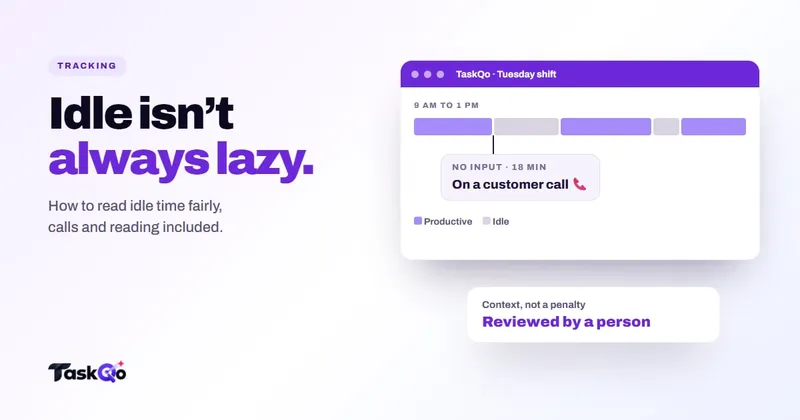
An agent on a long call, a team lead reading an escalation, or a reviewer listening to a recorded conversation can all go several minutes without input while doing exactly what the job needs. Treating those minutes as idle punishes careful work and makes the data less trustworthy for everyone.
How most idle time tracking works, and where it slips
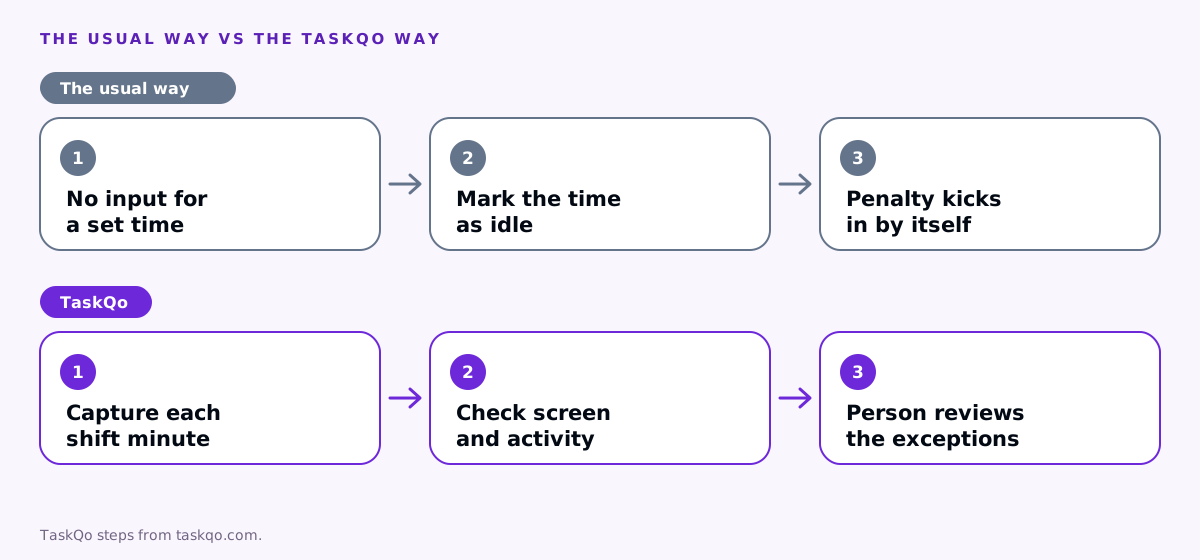
The usual setup has three parts: an input timer, a threshold and a consequence. When the timer passes the threshold, the time is marked idle. The consequence might be a dip in a productivity score, a gap in the timesheet or a prompt asking the person to explain the gap.
Each part can go wrong. A single threshold for everyone ignores the difference between a chat agent and a phone agent. A timer that only watches input cannot tell a phone call from a coffee break. And a consequence that kicks in automatically means the first person to see the mistake is the one being penalized for it.
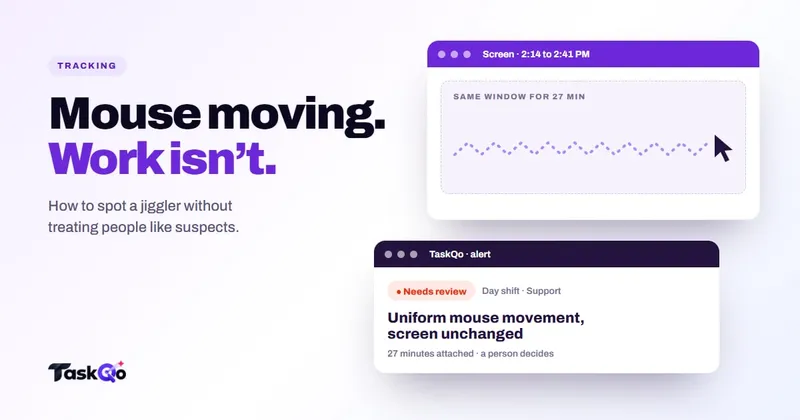
The result is a number that is technically accurate and practically misleading. People learn to protect themselves with small mouse movements or jigglers, and the idle figure stops telling you anything useful about real breaks in work.
Picking an idle threshold that fits the role
There is no single right threshold. The right one depends on how the work is done. Start by sorting your roles into a few groups.
- Input-heavy roles. Chat and email support, data entry and back-office processing usually involve steady typing. Shorter gaps are reasonable here.
- Mixed roles. Agents who switch between tickets, calls and research need more room, since reading and checking systems leave gaps.
- Listening and reading roles. Phone agents, QA reviewers, trainers and team leads can go long stretches with little input. They need the most room, or a way to recognize calls as work.
Test a threshold on a few real shifts before rolling it out. Look at the stretches it marks as idle and ask whether a reasonable manager would agree. If most flagged stretches turn out to be calls or reading, the threshold is too tight for that role.
Write the thresholds down and share them. People should know what counts as idle before it affects them, not after.
Calls, meetings and reading time
The biggest source of unfair idle time is work that happens away from the keyboard. Calls are the obvious case, but meetings, training sessions and long documents behave the same way.
There are a few ways to handle this. Some teams let people tag time as a call or meeting. That works, but it adds admin and relies on memory. Others link the phone system or calendar so call and meeting time is known. A third option is to look at the screen itself: if a call app, a transcript or a long policy document is on screen, the minute is probably work.
Whatever you choose, make sure the same evidence is visible to the person. If an agent can see that a call was counted as idle, they can raise it the same day instead of finding out in a review weeks later.
Be careful with tagging systems that make people justify every gap. They turn idle tracking into paperwork, and people who forget to tag a call end up penalized for forgetting, not for idling.
How to read idle time fairly
- Check the screen before the number. An idle stretch with a call app or a long document in focus is different from one with a locked screen or an unrelated site.
- Look at the shift, not the minute. Short gaps are normal. Long or repeated stretches are what deserve a look.
- Compare with output. If the person handled their queue, idle minutes matter much less than if the queue grew.
- Separate breaks from idle. Scheduled breaks and lunch should be recorded as breaks, not mixed into idle time.
- Ask, then decide. A short question often explains a stretch: a system outage, a fire drill, a manager pulling someone into a meeting.
Idle data is most useful at team level. If one client account shows rising idle time across everyone, the cause may be thin call volume or a tool problem, not individual effort. That is a staffing conversation, not a disciplinary one.
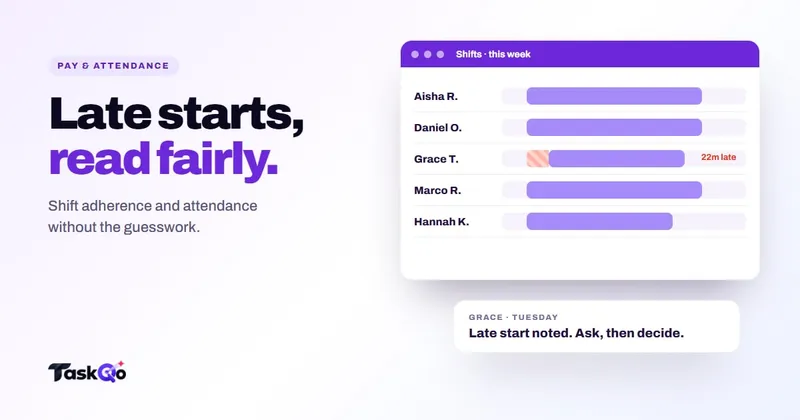
It also helps to watch idle time alongside schedules. A spike right after shift start may point to slow logins or a system that takes time to load. A spike late in the day may mean the queue dries up before the shift ends. Both are fixable with better scheduling, and neither is about effort.
How TaskQo handles idle time
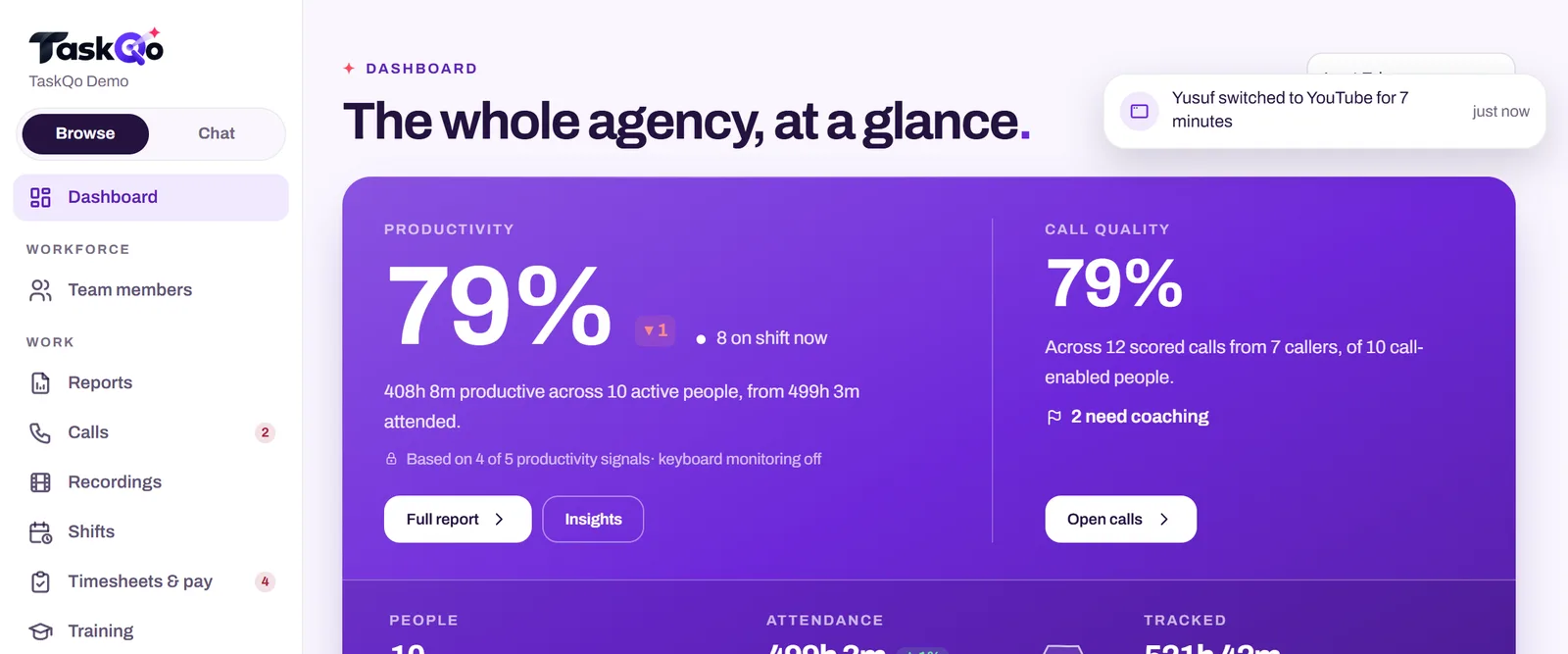
TaskQo does not rely on an input timer alone. It captures one screenshot each tracked minute during scheduled shifts and classifies every minute as productive, unproductive or idle. Clear-cut work is classified from the app in focus, and AI vision reviews the rest, so a minute spent reading a ticket or on a supported call is judged by what was on screen.
Every result shows its work: the screenshot, the activity level and a one-line reason. Managers confirm or change a classification in one click, and the change is logged. Team members see their own timeline with the same reasons, so a wrong idle mark can be spotted and corrected early.
Monitoring runs only inside fixed or flexible scheduled shifts, and capture is switched off outside them. Long idle stretches can raise an alert for a person to review, and a flag never changes pay or scores on its own. Explore it in the live demo with sample data, or join the waitlist for early access.
Talking about idle time with your team
How you introduce idle tracking shapes how people react to it. Explain what idle means in your setup, what the thresholds are for each role, and how calls and meetings are handled. Make it clear that idle time is reviewed by a person and is not an automatic penalty.
When you do raise idle time with someone, lead with the evidence and a question, not a conclusion. "I noticed a long gap after lunch on Tuesday, what was going on?" gets a better answer than "You were idle for an hour."
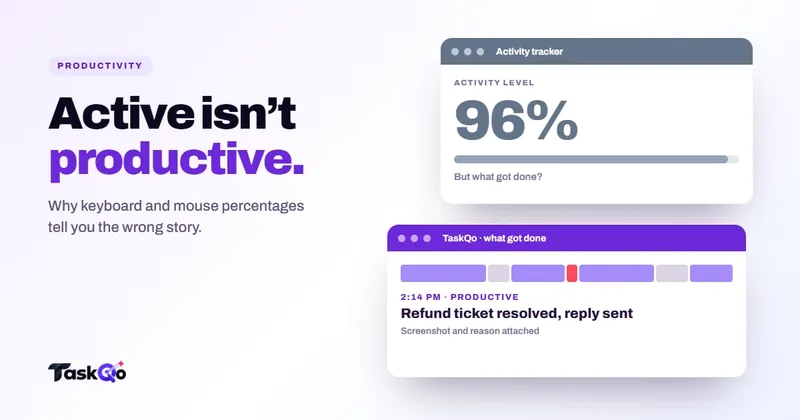
If people keep running into idle marks for real work, treat that as a signal about your setup, not about them. Our posts on why activity percentage misleads and how to detect mouse jigglers show what happens when idle and activity rules feel unfair.
Comparing tools: TaskQo vs DeskTime: simple time tracking or AI shift analysis? · TaskQo vs Monitask: screenshots and timesheets, or AI analysis?.
FAQ
What is idle time in time tracking?
In most tools, idle time is a period with no keyboard or mouse input longer than a set threshold. It does not necessarily mean the person was not working.
What is a reasonable idle time threshold?
It depends on the role. Input-heavy roles can use shorter thresholds, while phone, reading and review roles need longer ones or a way to recognize calls as work. Test it on real shifts before rolling it out.
Does being on a call count as idle?
In many tools it does, because calls produce little keyboard or mouse input. Fairer setups recognize call time from the phone system, the calendar or what is on screen.
Should idle time be deducted from pay?
Not automatically. Idle marks can be wrong, so a person should review them first. Pay rules also differ by country and state, so check local law or ask counsel before deducting time.
About this guide: written by the TaskQo team. We make TaskQo, a tool that analyzes work inside scheduled shifts, so we mention it where it fits. The advice here works with any tool. Rules on workplace monitoring differ by country and state, so check local law before you change a policy. Questions or corrections: admin@taskqo.com.