
Key takeaways
- Jigglers beat tools that count mouse movement, so check whether the screen and the work changed too.
- Look for a pattern across several shifts, never a single quiet stretch.
- A flag is a reason to look and ask, not proof of anything.
- Fix the measurement that makes people want a jiggler in the first place.
What is a mouse jiggler?
A mouse jiggler is a small device or app that moves the cursor on its own. Some plug into a USB port, some sit under the mouse and nudge it, and some are just a script running in the background. To the computer, the movement looks like a person sitting at the desk.
If you want to detect a mouse jiggler on your team, start by understanding why people use one. Many team members use them for harmless reasons: to stop the screen locking while they read a long document, to keep a chat status green during a long call, or because a strict idle timer once marked them away while they were plainly working.
Others use them to look busy while they are away from the desk. In a call center or BPO, that can mean missed queue time, slower replies and hours billed to a client that were never worked. Both groups exist on most teams, which is why the way you respond matters as much as how you find a jiggler.
Why activity tracking tools miss jigglers
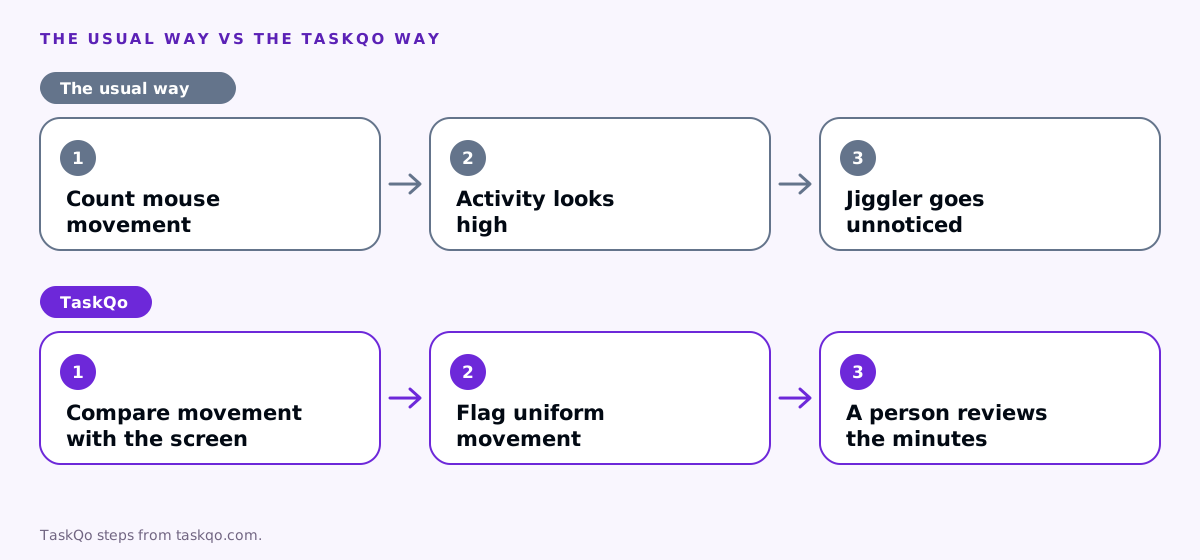
Most time trackers measure activity by counting keyboard and mouse events. If the mouse moves, the minute counts as active. A jiggler is built to exploit exactly that rule, so the activity level stays high while nothing else on the computer changes.
Some tools try to catch the movement itself by looking for perfectly regular patterns. That helps with cheap devices, but newer jigglers add random movement and pauses so the cursor looks human. Chasing the movement alone quickly turns into an arms race you will not win.
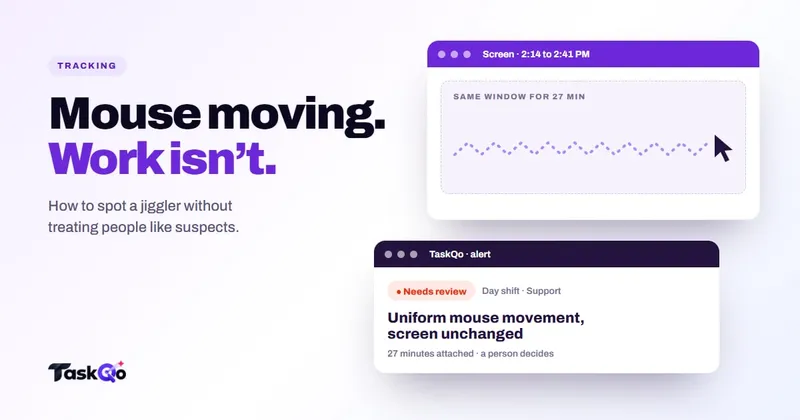
The better question is not "did the mouse move?" but "did any work happen?" A real person moving a mouse is usually doing something: a ticket changes, a reply gets drafted, a CRM record opens. When the cursor keeps moving for a long stretch and the screen stays exactly the same, that mismatch is the signal worth checking.
Signs that point to a jiggler
No single sign proves anything. Look for several of them together, over more than one shift.
- Steady movement, frozen screen. The cursor moves in small, even steps while the same window sits unchanged.
- Activity without output. High activity levels, but no tickets closed, no calls handled and no messages sent in that stretch.
- Movement with no typing. Long periods of mouse-only activity in a role that normally needs the keyboard, such as chat or email support.
- Telling timing. The pattern lines up with lunch, the end of a shift or the hour after a break.
- A new USB device. Some jigglers show up as an extra mouse or keyboard. On its own this means little, since plenty of people use a second mouse.
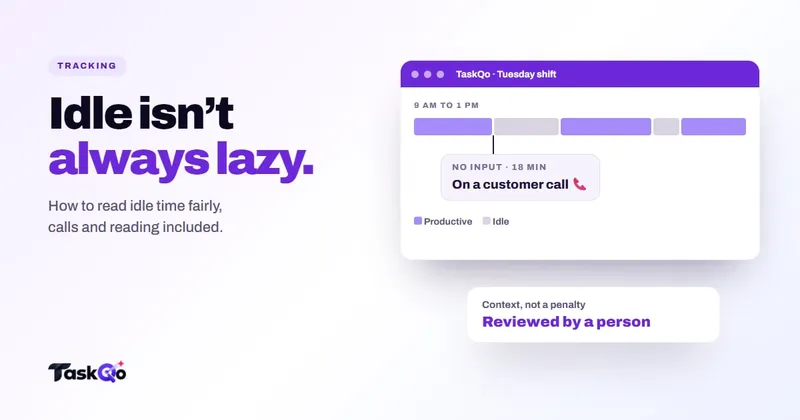
Be careful with roles that involve reading or listening. A QA reviewer reading a long transcript, or an agent on a call checking a knowledge base article, may move the mouse lightly while little else changes on screen. That is work, not cheating, and your review process has to allow for it.
How to detect a mouse jiggler fairly
- Tell people what you check. Put it in your monitoring policy: you look at activity and screen evidence together, and you look for automated input. Most people stop using a jiggler once they know it is visible, which saves everyone a hard conversation later.
- Compare movement with the screen. Pull the screenshots or screen activity for the flagged stretch. If the screen changed and work moved forward, close the question.
- Check the output. Look at the queue, the ticket history or the call log for the same period. Real work leaves traces somewhere.
- Look for a pattern, not a moment. One quiet stretch can be a phone call with a customer or a bathroom break. Repeated stretches across several shifts are worth a conversation.
- Ask before you decide. Share what you saw and ask for the context. There may be a reason you could not see from the data, such as a system outage or a task done on paper.
Write down what you found, what the person said and what you decided. If you ever need to explain the decision, a calm written record helps far more than a gut feeling or a screenshot pulled out of context.
What should you do when you confirm one?
Treat the first case as a conversation, not a case file. Ask why the person used it. If the answer is "my screen kept locking while I read policy updates", fix the lock settings. If it is "I was marked idle on calls and it hurt my score", fix the scoring.
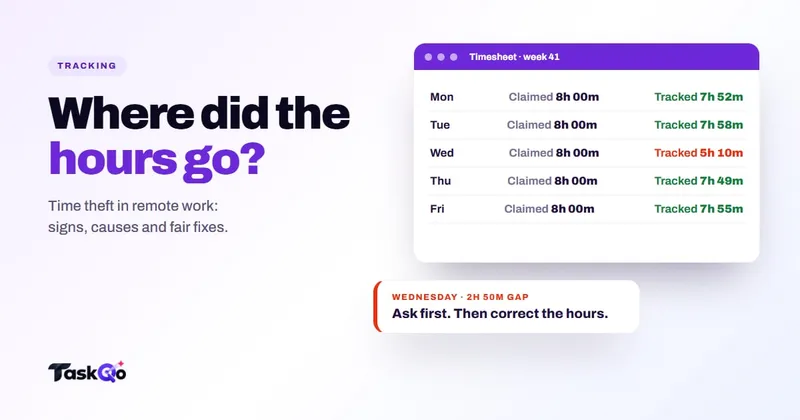
When someone used a jiggler to cover real time away, be clear about the impact. Hours that were not worked should not be paid as worked or billed to a client, and that needs correcting. Follow your written policy and apply it the same way to everyone, whether they are a new agent or a team lead.
Close the loop afterwards. Tell the person what happens next, correct any hours that need it, and check in after a couple of weeks. Most people who used a jiggler to cope with a bad rule stop once the rule is fixed, and the ones who used it to skip work usually stop once they know it is seen. Either way, the goal is accurate time, not a punishment record.
Rules about monitoring and discipline differ by country and state. Check local law or ask counsel before you act on monitoring data, especially for anything that affects pay or someone's job.
How TaskQo flags jigglers for review
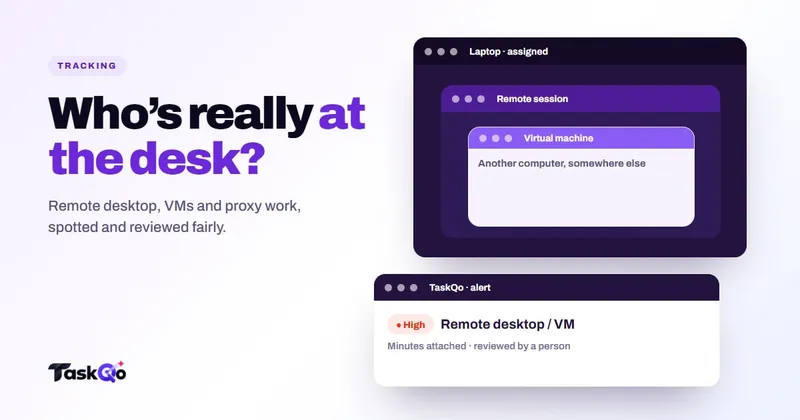
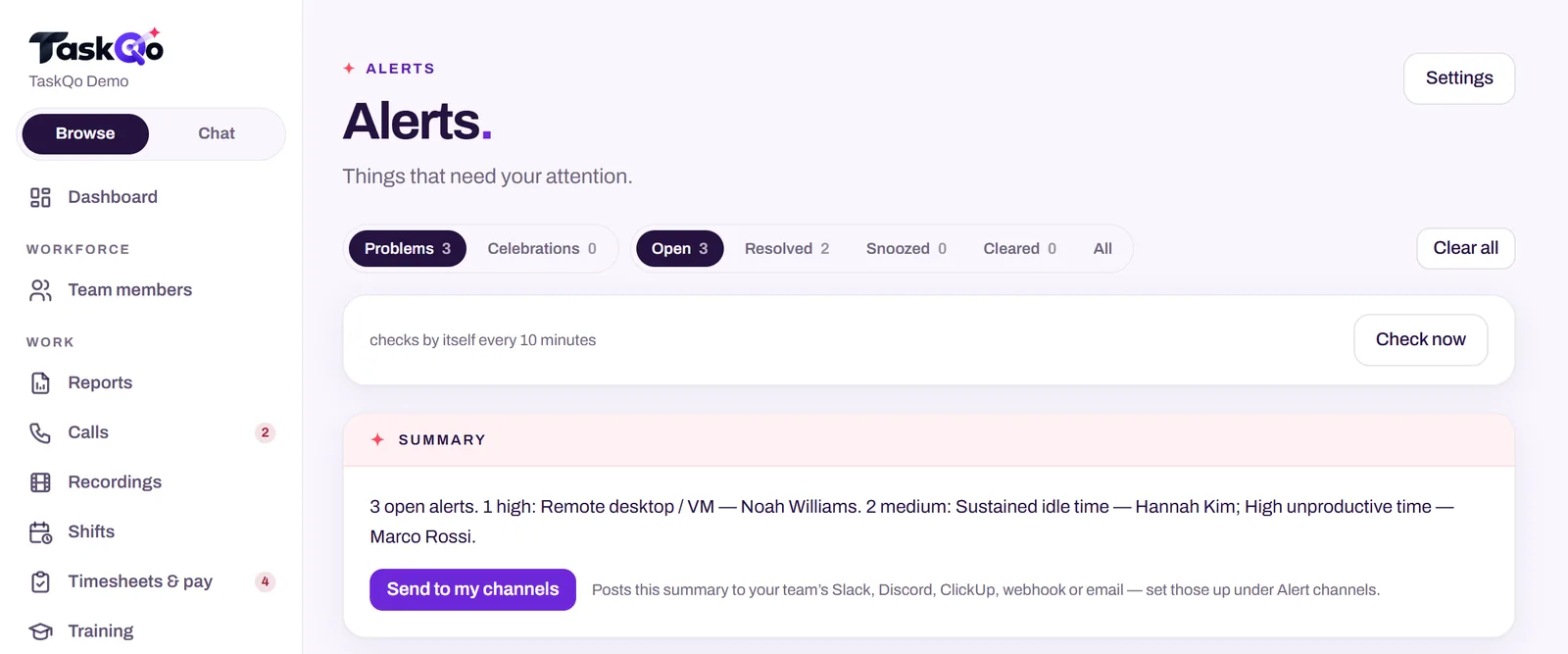
TaskQo looks for activity patterns linked to mouse jigglers, along with remote-desktop sessions, virtual machines and long idle stretches. Because it captures one screenshot each tracked minute and classifies every minute as productive, unproductive or idle, it can see when the mouse keeps moving but the screen does not change.
A flag arrives with the minutes attached, so the manager sees the screenshots and activity behind it and decides with evidence. A typical alert describes uniform movement with a frozen screen and links the exact minutes. Flags are reviewed by a person and never change pay or scores on their own.
Monitoring runs only inside scheduled shifts, consent is recorded before the first capture, and team members see their own timeline, the same one their manager sees. That openness is often what stops jigglers in the first place. You can see how alerts look in the live demo with sample data, or join the waitlist for early access.
Remove the reasons people reach for a jiggler
Jigglers are often a symptom. When a team is judged on keyboard and mouse percentages, people learn to feed the counter. When idle timers fire during calls or reading, people protect themselves. Fix those two things and most of the demand goes away.
- Measure outcomes and work evidence, not raw activity. See why activity percentage misleads.
- Set idle thresholds that fit the role. Our guide to tracking idle time fairly covers calls and reading time.
- Let people see their own data, so a wrong reading can be corrected early instead of becoming a dispute.
A team that trusts the measurement has little reason to game it, and a manager who trusts the evidence has little reason to hover.
Comparing tools: TaskQo vs Monitask: screenshots and timesheets, or AI analysis? · TaskQo vs Hubstaff: AI work analysis or time tracking?.
FAQ
Can a mouse jiggler be detected?
Often, yes. The most reliable sign is not the movement itself but the mismatch between steady mouse activity and a screen where nothing changes and no work moves forward.
Is using a mouse jiggler at work illegal?
It is usually a workplace policy question, and rules differ by country and state. If a jiggler was used to claim paid time that was not worked, handle it under your written policy and check local law or ask counsel.
Can IT see a USB mouse jiggler?
Some USB jigglers appear as an extra input device that IT tools can list. Many people use a second mouse or keyboard for normal reasons, so a device on its own proves nothing.
Why do people use mouse jigglers?
Common reasons include stopping the screen from locking, keeping a chat status active during calls, avoiding unfair idle marks and, sometimes, covering time away from the desk.
About this guide: written by the TaskQo team. We make TaskQo, a tool that analyzes work inside scheduled shifts, so we mention it where it fits. The advice here works with any tool. Rules on workplace monitoring differ by country and state, so check local law before you change a policy. Questions or corrections: admin@taskqo.com.