
Key takeaways
- The same app can be work for one person and a distraction for another.
- Fixed lists mislabel browsers, chat tools, spreadsheets and video sites.
- Classify by context: role, task and what is on screen.
- Show people the reason behind each label and let managers correct it.
Why productive vs unproductive apps lists are so popular
Most monitoring tools start with a list: these apps are productive, these are unproductive, everything else is neutral. Sorting productive vs unproductive apps this way is quick to set up, easy to explain and produces a neat percentage at the end of the day.
The trouble starts when you look at a real shift. A support agent has a help desk, a CRM, a knowledge base, a browser, a chat tool and maybe a spreadsheet open at once. Some of that time is clearly work. Some of it is not. And the app name alone rarely tells you which.
This guide covers where app lists go wrong, what a more useful approach looks like, and how to make the labels fair to the people being measured.
Where do app lists go wrong?
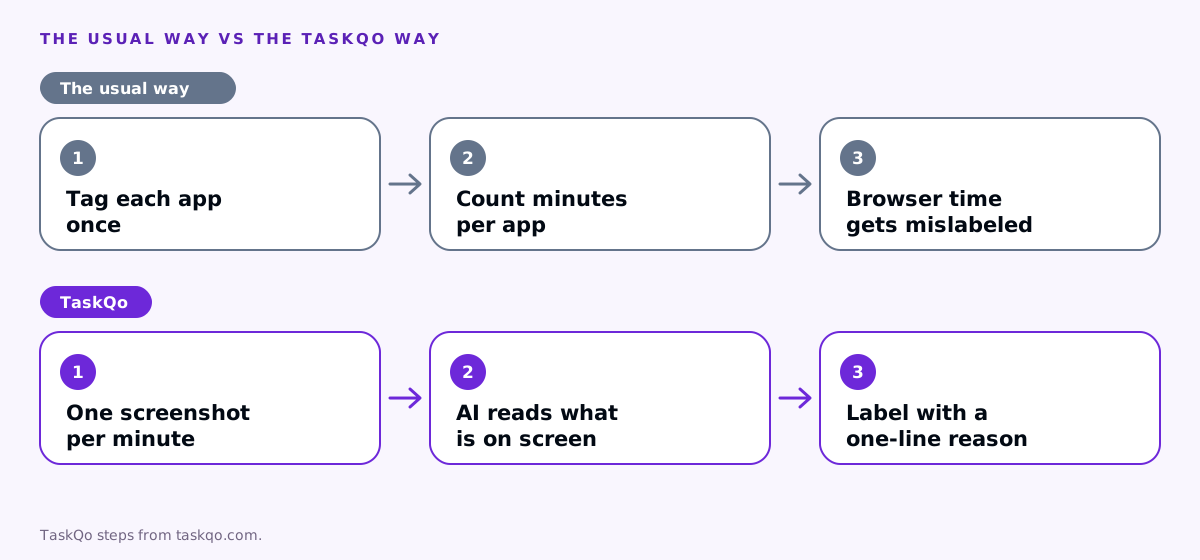
The usual setup is that an admin tags apps and websites once, the tool counts minutes in each, and a report adds them up. It breaks in a few predictable places.
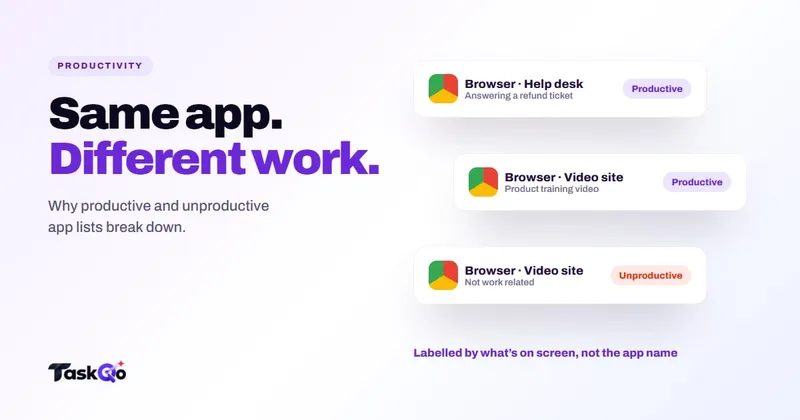
- Browsers. A browser tab can be your ticketing system, a customer's order page or a shopping site. Calling the whole browser productive or unproductive is wrong either way.
- Video sites. A product training video is work. A music video is not. Same site.
- Chat and email. Talking to a customer or a team lead is work. A long personal thread is not.
- Spreadsheets. Updating a client report is work. A personal budget is not.
- Roles. Social media is a distraction for a billing agent and the main job for a social care agent.
Each of these errors pushes the number in a direction that has nothing to do with effort, which is how good agents end up looking bad on paper.
The cost of getting the label wrong
Mislabeled time is not just a reporting glitch. It changes behavior.
If research in a browser counts as unproductive, agents learn to avoid looking things up, and customers get worse answers. If any minute in the help desk counts as productive, someone can leave a ticket open and look busy. Both outcomes are the opposite of what the report was meant to encourage.
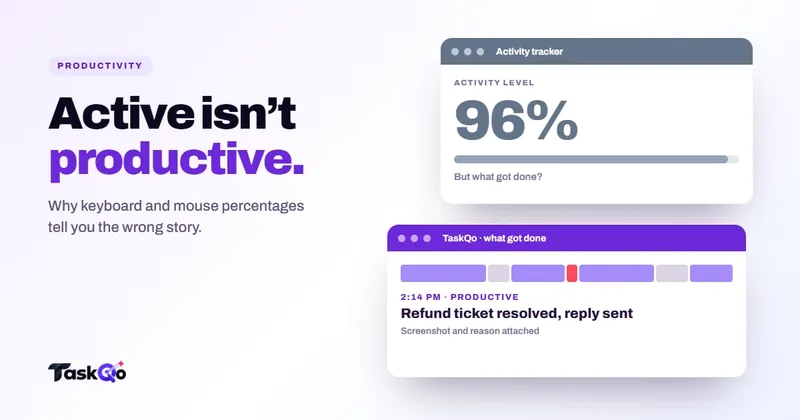
It also hurts trust. When an agent sees a low score for a day they know was full of real work, they stop believing the numbers, and they stop believing the manager who quotes them. Once that happens, even accurate reports get argued with. Our post on why activity percentage misleads covers a similar problem with keyboard and mouse counts.
Classify by context, not by app name
A fairer approach asks what the person was doing, not only which window had focus. Useful context includes:
- Role and queue. What does this person's job actually involve? A sales agent researching a prospect's website is working.
- What is on screen. A ticket, a customer record or a training page is very different from a game or a store, even inside the same browser.
- Activity around it. Was the person on a call, typing a reply or reading a long policy document?
- Schedule. A personal site during an approved break is not off-task time.
You will still want a few clear rules. Your help desk and CRM can be counted as work by default, and obvious entertainment can be counted as off task. The point is to stop forcing ambiguous tools into one bucket and to look at them case by case.
Building a fair classification policy
Whatever tool you use, a short written policy helps everyone read the numbers the same way.
- List the core work tools per role. Keep it short and review it when a client account changes.
- Name the gray areas. Browsers, video, chat and spreadsheets need context, so say so.
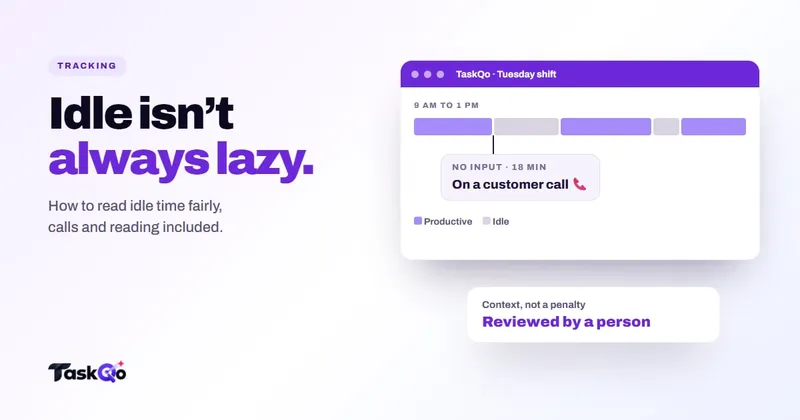
- Define idle separately. No input is not the same as unproductive. A person reading or on a call may be idle on the keyboard and fully at work.
- Show people their own data. If an agent can see how a minute was labeled and why, they can flag a mistake.
- Let managers correct labels and log the change. Corrections should be easy and visible, not hidden edits.
Revisit the policy after the first few weeks. The labels that get corrected most often tell you which rules need fixing.
Reading the report without overreacting
Even with good classification, a single day is a noisy sample. Look for patterns across a week or more, and compare people doing similar work on the same queue.
When something looks off, open the underlying minutes before you talk to anyone. You will often find a perfectly good reason: a system outage, a long training video, a complex customer case. When the evidence does show a problem, a short, specific conversation is better than quoting a percentage.
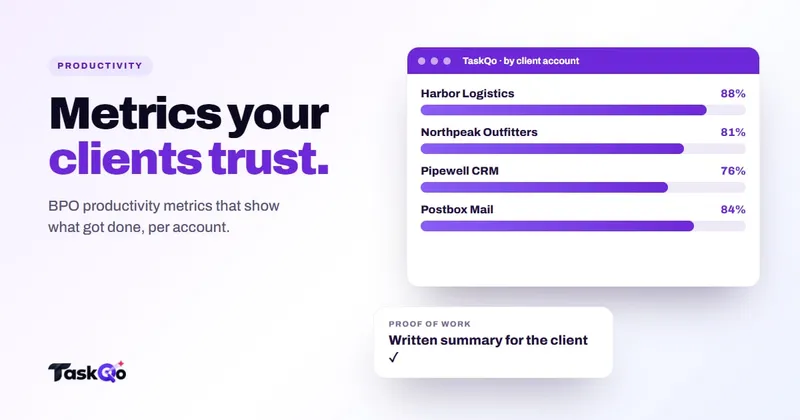
Remember that productive time is an input, not an outcome. Pair it with what the team actually delivers, such as tickets resolved or call quality, before drawing conclusions. Our guide to BPO productivity metrics goes deeper on output measures.
Three examples from a support desk
Real shifts show why context beats a list. Here are three common situations and how an app list and a context-based view would read them.
The agent researching a refund
A support agent spends twenty minutes in a browser reading a carrier's tracking page and the client's refund policy before answering a ticket. An app list that treats the browser as neutral or unproductive marks that time down. A context view sees a tracking page and a policy document next to an open ticket, and counts it as work.
The agent watching a training video
A new hire on a billing queue watches the client's onboarding videos on a video site. An app list flags the site as entertainment. A context view sees a product walkthrough during scheduled training time and labels it accordingly.
The agent with the help desk open all afternoon
An agent leaves the help desk in focus for an hour while chatting on a phone, with the same ticket on screen and no replies sent. An app list counts every minute as productive because the help desk is a work tool. A context view sees an unchanged screen and no input, and marks the time idle, with the screenshots attached for a manager to check.
In each case, the fairer label comes from looking at what was on screen, not from the app name. That is also what a manager would conclude if they had time to open every minute themselves.
How TaskQo classifies productive and unproductive time
TaskQo does not rely on a fixed app list alone. One screenshot is captured each tracked minute during scheduled shifts. Clear-cut work is classified from the app in focus, AI vision reviews the rest, and every minute is marked productive, unproductive or idle.
Each result shows its work: a one-line summary of what was on screen, the screenshot, the activity level and the app that was in focus. So a browser minute spent in a customer's order page and a browser minute spent shopping get different labels, with the reason visible.
Managers can confirm or change a classification in one click, and every change is logged. Team members see the same timeline and the same reasons in their own self-view, so a wrong label can be spotted by the person who knows the work best.
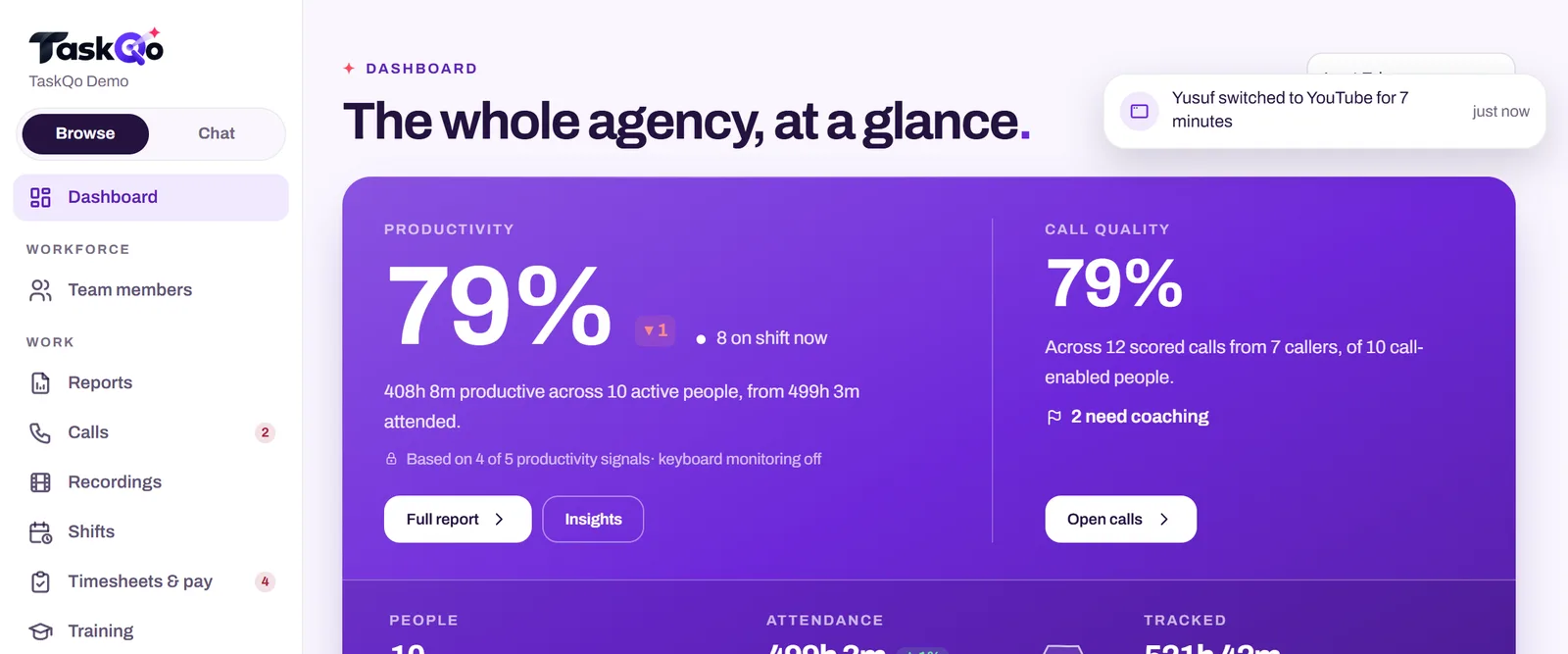
Hover through a classified shift in the live demo with sample data, or join the waitlist for early access.
Comparing tools: TaskQo vs ActivTrak: workforce analytics or minute-by-minute evidence? · TaskQo vs Insightful: two ways to understand remote work.
FAQ
What counts as an unproductive app?
It depends on the role and the task. Entertainment and shopping are usually off task, but browsers, video, chat and spreadsheets can be work or not depending on what is on screen.
Why is my browser time marked unproductive?
Many tools label the whole browser one way. If your work happens in web apps, ask for context-based classification or for your core work sites to be listed as work.
Is idle time the same as unproductive time?
No. Idle means no keyboard or mouse input. A person reading, thinking or on a call can be idle on input and still working.
How should managers set productive and unproductive app categories?
List core work tools per role, name the gray areas, define idle separately, show people their own labels and let managers correct mistakes with a logged change.
About this guide: written by the TaskQo team. We make TaskQo, a tool that analyzes work inside scheduled shifts, so we mention it where it fits. The advice here works with any tool. Rules on workplace monitoring differ by country and state, so check local law before you change a policy. Questions or corrections: admin@taskqo.com.